
Office 365 is used at Reliable Parts. You can, at any time, install the Microsoft Office applications that you are licensed for via the Office 365 portal via your account page.
NOTE: If you already have Office installed, and it's is non-Office 365 package, simply go to Add/Remove Programs and uninstall Microsoft Office.
To install Office 365 Office and other application subscriptions:
- Open https://portal.office.com/account/
- Log into your Office 365 account using your username and password combination you use to log into your computer. This is your firstname.lastname@reliableparts.com email address and password.
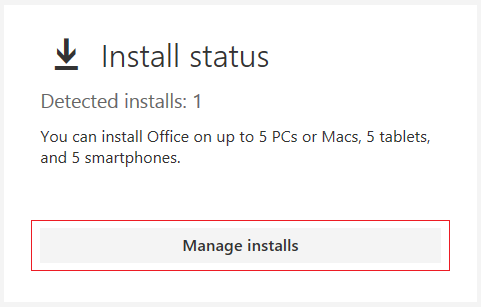
- Click Manage Installs from the Install Status card.
- Click the Install desktop applications link on the Install status page.
- From the Software list on the left side of the page, choose the application group you want to install. By default, Office may be selected.
NOTE: Windows 10 64-bit user can install the 64-bit version of Office. If you are still on Windows 7, please choose 32-bit version of Office only. - Click the Install button to start the download to your computer.
- Follow the instructions presented on the screen to complete the installation. When you see the following screen, click RUN.

0 Comments