
This article applies to Microsoft Outlook 2010, Outlook 2013 and Outlook 2016
If you cannot find an employee in the Global Address List (GAL), also know as the Global Address Book, first try downloading it manually. For mobile employees, the address book is cached to the local computer and is updated once every 24 hours.
To download the Global Address List (GAL) manually to your computer:
- Open Outlook.
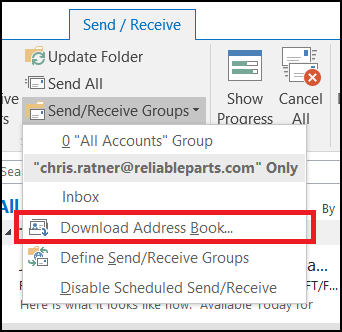
- Click Send/Receive tab at the top of the Outlook window.
- Click Send/Receive Groups drop down.
- Click Download Address Book....
- Check the box Download changes since last Send/Receive.
This will reduce the amount of time it takes to download the Global Address List (GAL) - Click OK.
A small window appears with the progress of the download.
Once the download completes, the latest version of the Global Address Book will be local to your computer.
0 Comments